Azure and Django User log retrival
Azure/Entrant
Log in and Enable activate reader role
We use Entranet Login to secure the Find MoJ website so we can use these logs to get an idea of how many people have logged in to the platform.Entranet
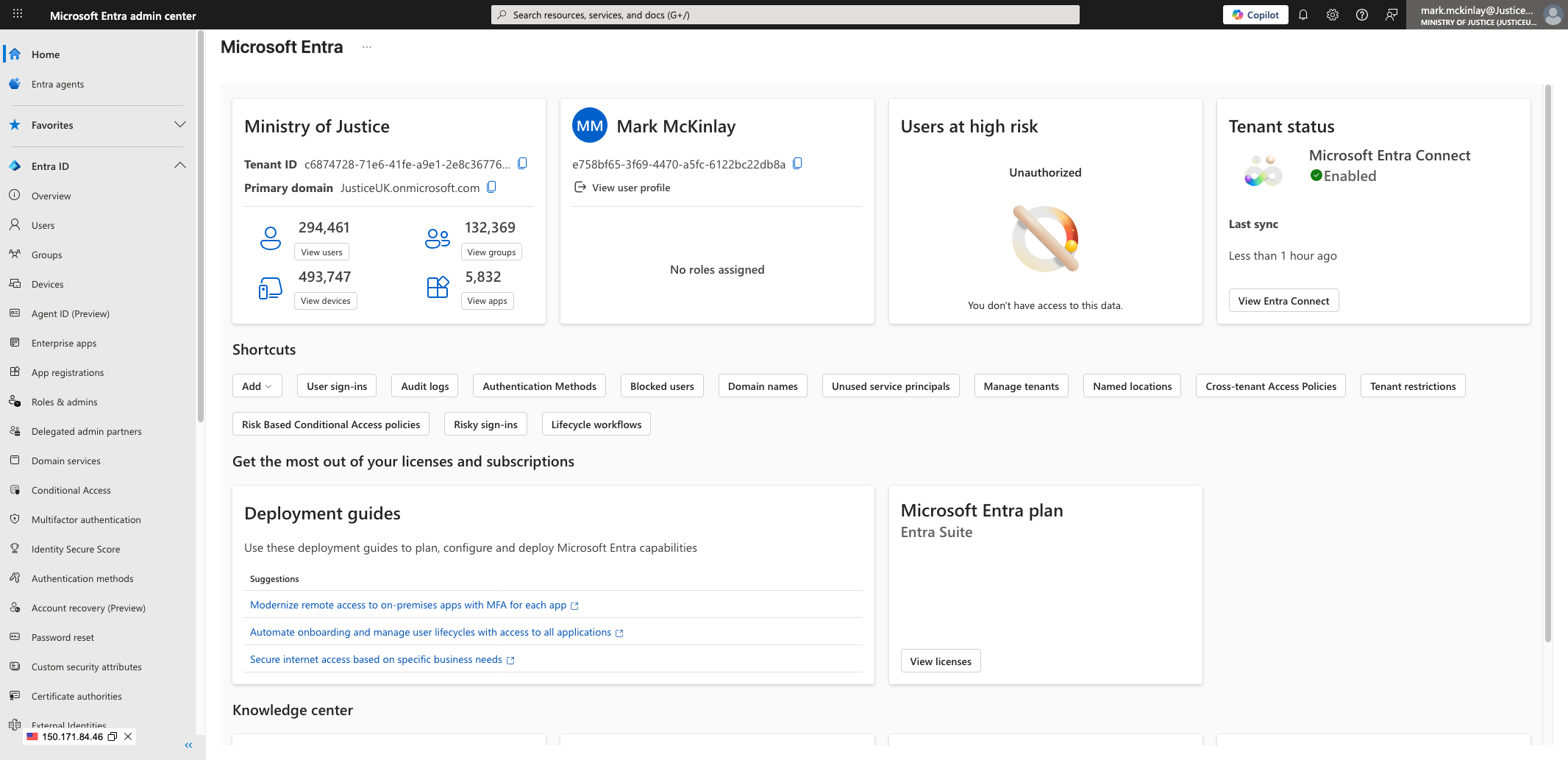
1) First you need to log into Entranet (username should be from the domain @JusticeUK.onmicrosoft.com )
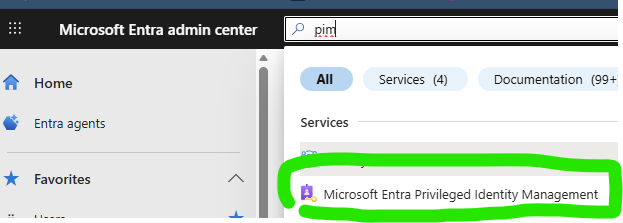
2) search for “Privileged Identity Management” you should see this in the results:
3) Then you can browse to My Roles, and Activate Reports Reader.
4) Search for enterprise applications
5) Use search by application name and look for find-moj-data-prod
6) click on the link and then click on sign in logs
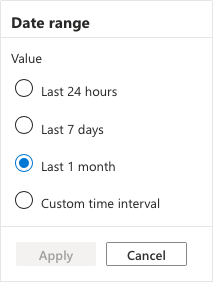
7) change the filters so date range is last 1 month and click apply
8) Click Download and select csv
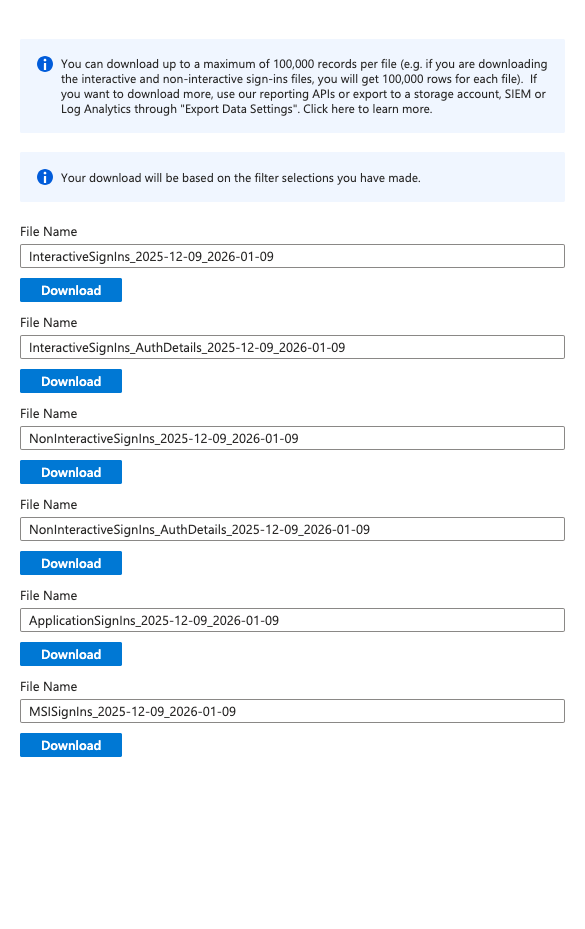
9) Download interactive signins and non interactive signins
Login session Download
The Find MoJ Data application creates login sessions for users when they authenticate. These sessions are stored in the database and are not automatically deleted after a certain period of time, which can lead to a large number of these sessions accumulating over time.
1) Obtain & decode the RDS endpoints and credentials for the relevant environment (e.g. production) via kubectl.
kubectl get secret -n data-platform-find-moj-data-prod rds-postgresql-instance-output -o json | jq '.data | map_values(@base64d)'
2) Launch the port forward pod in the appropriate environment (e.g. production) by specifiying the namespace -n data-platform-find-moj-data-prod and replacing <rds_instance_address from above> with the RDS instance address obtained in step 1:
   kubectl \
    -n data-platform-find-moj-data-prod \
    run port-forward-pod \
    --image=ministryofjustice/port-forward \
    --port=5432 \
    --env="REMOTE_HOST=<rds_instance_address from above>" \
    --env="LOCAL_PORT=5432" \
    --env="REMOTE_PORT=5432"
3) Port forward the local port to the pod:
    kubectl -n data-platform-find-moj-data-prod \
    port-forward \
    port-forward-pod 1234:5432
4) Connect to the Database using PGAdmin4
Create a connection to a server using the details from step 1
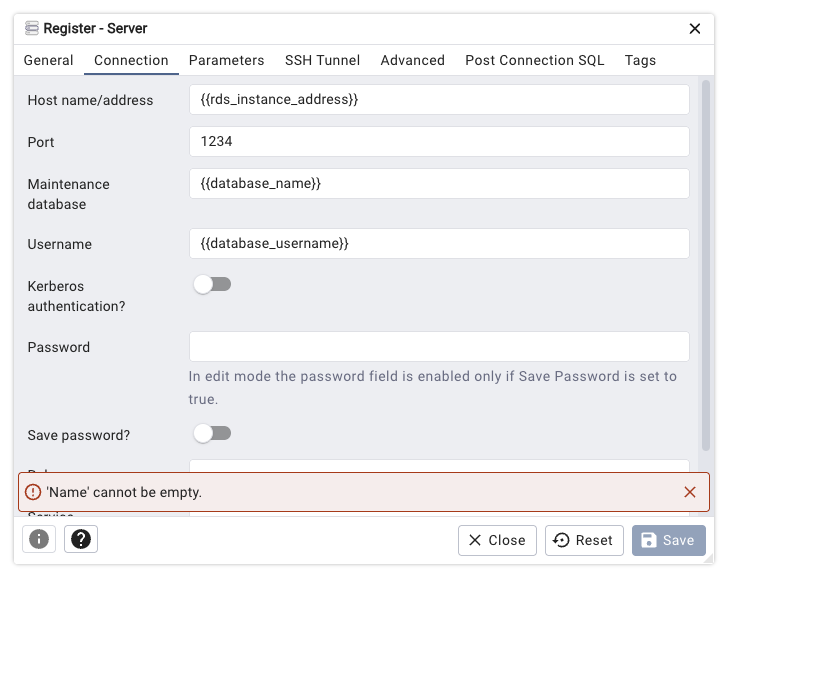
5) Select the server you have just set up and choose databases > schemas > public > Tables
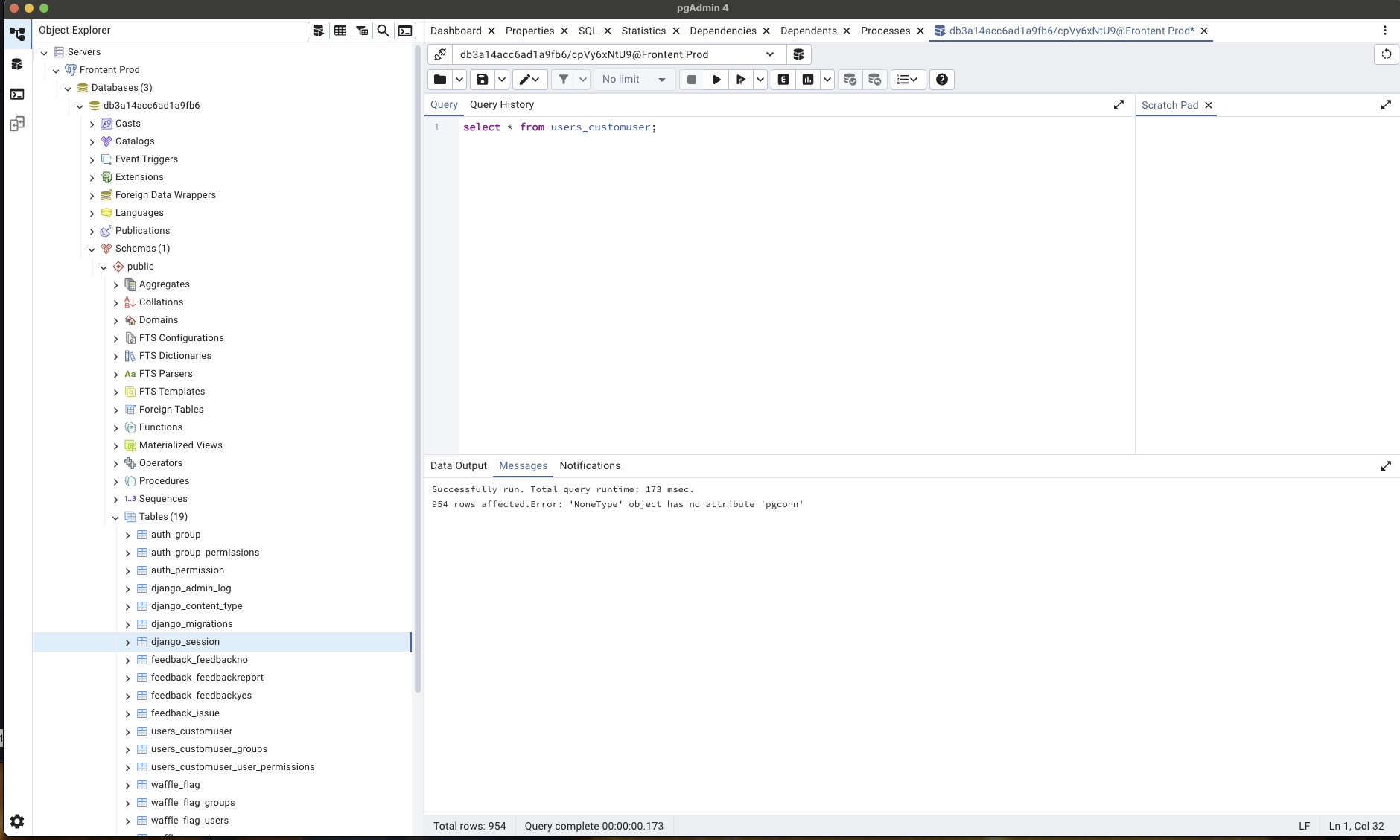
6) Right click on users_customuser and select query tool
7) In the query window which opens type
SELECT * from users_customuser;
8) In the data output window click the download icon and name the file
9) Once complete, exit the psql session and terminate the port-forward pod:
kubectl -n data-platform-find-moj-data-prod delete pod port-forward-pod
10) Send the 3 csv files over to the relevant people for analysis (currently lesley-Ann)